

 README

README

vbar
A lightweight bar written in golang
vbar is very new, and we're looking for help working out new features.
If you're using vbar, please let us know if anything is broken, or you need a new feature, by creating an issue.
Features
- Blocks can be clickable
- Blocks can have drop down menus
- Support for Font Awesome
- Style anything in the bar with CSS
- Update blocks with an interval
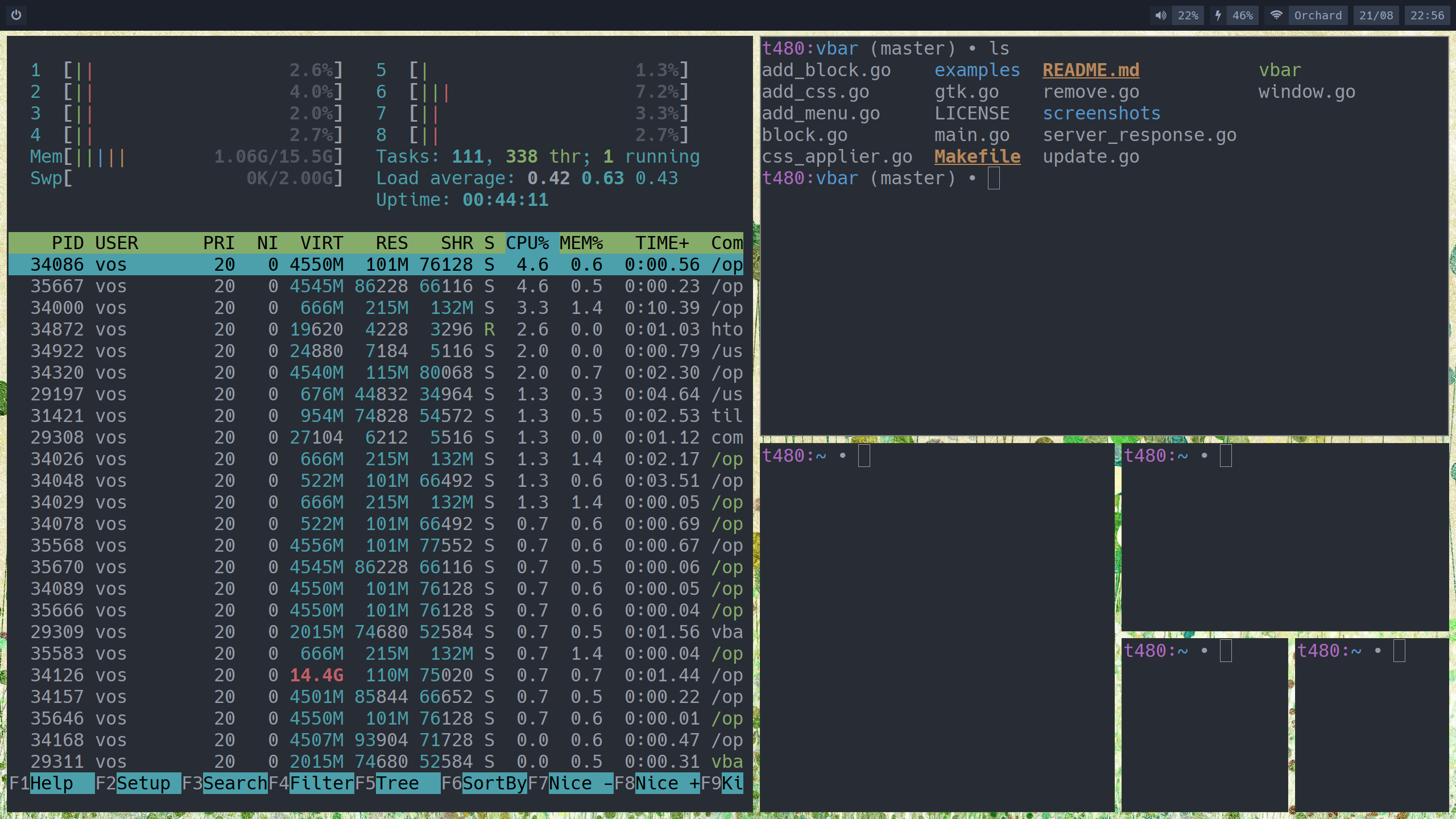
Screenshots



Installation
From source
Ubuntu
NOTE: This build is quite slow for some reason. I think it's because go spends a lot of time compiling C extensions. Sorry about that.
You'll need a working golang.
# Install dependencies
sudo apt install -y libglib2.0-dev libcairo2-dev libgtk-3-dev

# Install vbar
go get github.com/AndrewVos/vbar
sudo cp $GOPATH/bin/vbar /usr/local/bin/vbar

# Copy over an example config
mkdir -p ~/.config/vbar
cp $GOPATH/src/github.com/AndrewVos/vbar/examples/vbarrc $HOME/.config/vbar/
# See the configuration section to install extra packages needed for this config
Arch Linux
Install the package via the AUR:
AUR: vbar-git
# Copy over an example config
mkdir -p ~/.config/vbar
cp /usr/share/doc/vbar/examples/vbarrc ~/.config/vbar
# See the configuration section to install extra packages needed for this config
Configuration
The example config requires some packages:
- fonts-font-awesome
- https://github.com/baskerville/xtitle
- examples/volume.sh in your PATH
All configuration is done in the command line, which means
that vbar is very hackable.
Your vbarrc will just be executed by vbar when it launches,
to make things easier.
Adding a block
Blocks are added with the add-block command.
For example:
vbar add-block --left --name my-block --text hello
This will add the block named my-block with the text
hello.
Options
Adds a block to the left/right/center of the bar.
The name of the block.
Command will be executed once when creating the block and the text that comes back from the command will be used as the block text.
Works just like command, but it doesn't wait for the command to finish executing. The command is expected to write lines to stdout every time you want the block text to change. Each line output from the command will be used as the new block text.
A command to execute when you click on the block.
Use this to cause --command to be executed every N
seconds, for blocks that need to be updated on a
schedule.
Adding a menu to a block
Blocks can have drop down menus that pop up when the block is clicked.
Menus are added to blocks with the add-menu command.
Here's an example power off icon that shows an option to shut down when you click it.
vbar add-block --name power-off-icon --text "POWER"
vbar add-menu --name power-off-icon --text "Shutdown" --command "systemctl poweroff"
Options
The menu text.
Command that will be executed once when clicking the menu.
Updating a block
External scripts can trigger a block update
with the update command. This will
cause the block the execute command as usual.
For example, let's say we want a block that displays the currently active window title. First, we add the block:
vbar add-block --name title --command "xprop -id $(xprop -root _NET_ACTIVE_WINDOW | cut -d ' ' -f 5) WM_NAME | sed -e 's/.*\"\\(.*\\)\".*/\\1/'"
That command will be executed once, so our window title will only be the window that was active when vbar launched. Pretty useless.
To make the window title update as soon as you change windows, we can use xprop and tell vbar when the active window has changed.
Run the following on startup inside your window manager:
xprop -root -spy _NET_ACTIVE_WINDOW | while read -r LINE; do vbar update --name title; done &
Removing a block
A block can be removed with the remove command. The arguments are the same as the update command. For example, if you add a block like this:
vbar add-block --name time --command "date"
you can remove it like so:
vbar remove --name time
Adding custom styles
Everything in vbar can be styled with css.
To do this, we use the add-css command.
Styling the whole bar:
vbar add-css --class "bar" --css "font-family: Hack;"
vbar add-css --class "bar" --css "color: blue;
Styling each block:
vbar add-css --class "block" --css "padding-top: 5px;"
vbar add-css --class "block" --css "padding-bottom: 5px;"
Styling the menu:
vbar add-css --class "menu" --css "background-color: green;"
Styling the menu on hover:
vbar add-css --class "menu :hover" --css "background-color: purple;"
Styling the block called wireless:
vbar add-css --class "wireless" --css "background-color: orange;"
Transparency
It is possible to use transparent as a colour in css
(maybe you want your wallpaper to shine through your bar).
To do this you will need a compositor, for example compton.
 Documentation

Documentation


There is no documentation for this package.
 Source Files