

 README

README

omm
✨ Overview
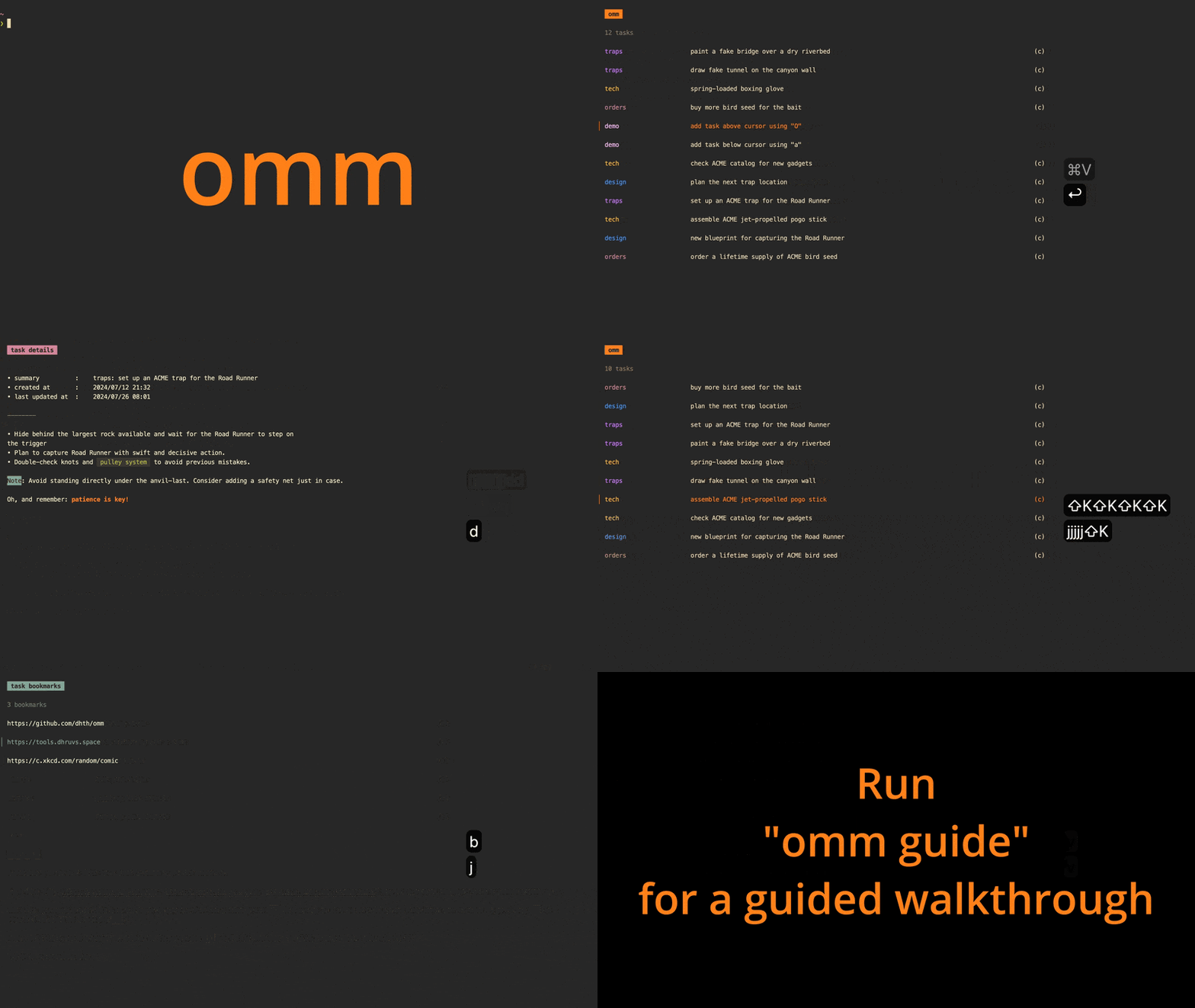
omm (stands for "on-my-mind") is a keyboard-driven task manager for the
command line.
omm is intended for those who need to frequently rearrange tasks in their
to-do list. It lets you move any item to the top of the list, add tasks at
specific positions, and adjust task priorities up or down, all via one or two
keypresses.
🤔 Motivation
The fundamental idea behind omm is that while we might have several tasks on
our to-do list — each with its own priority — we typically focus on one task at
a time. Priorities frequently change, requiring us to switch between tasks.
omm lets you visualize this shifting priority order with a very simple list
interface that can be managed entirely via the keyboard.
💾 Installation
homebrew:
brew install dhth/tap/omm
go:
go install github.com/dhth/omm@v0.2.1
Or get the binaries directly from a release.
💡 Guide
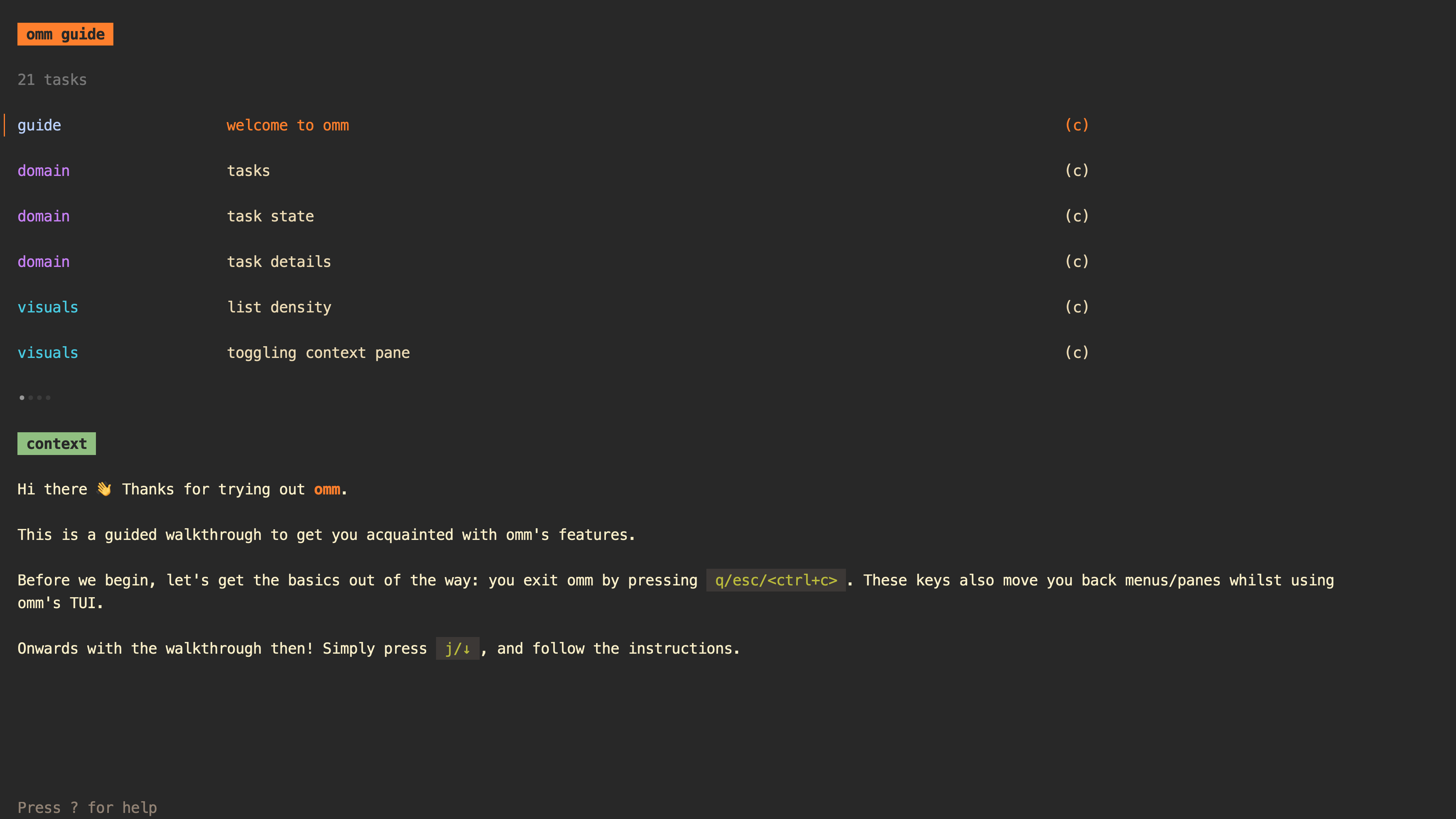
omm offers a guided walkthrough of its features, intended for new users of it. Run it as follows.
omm guide
⚡️ Usage
TUI
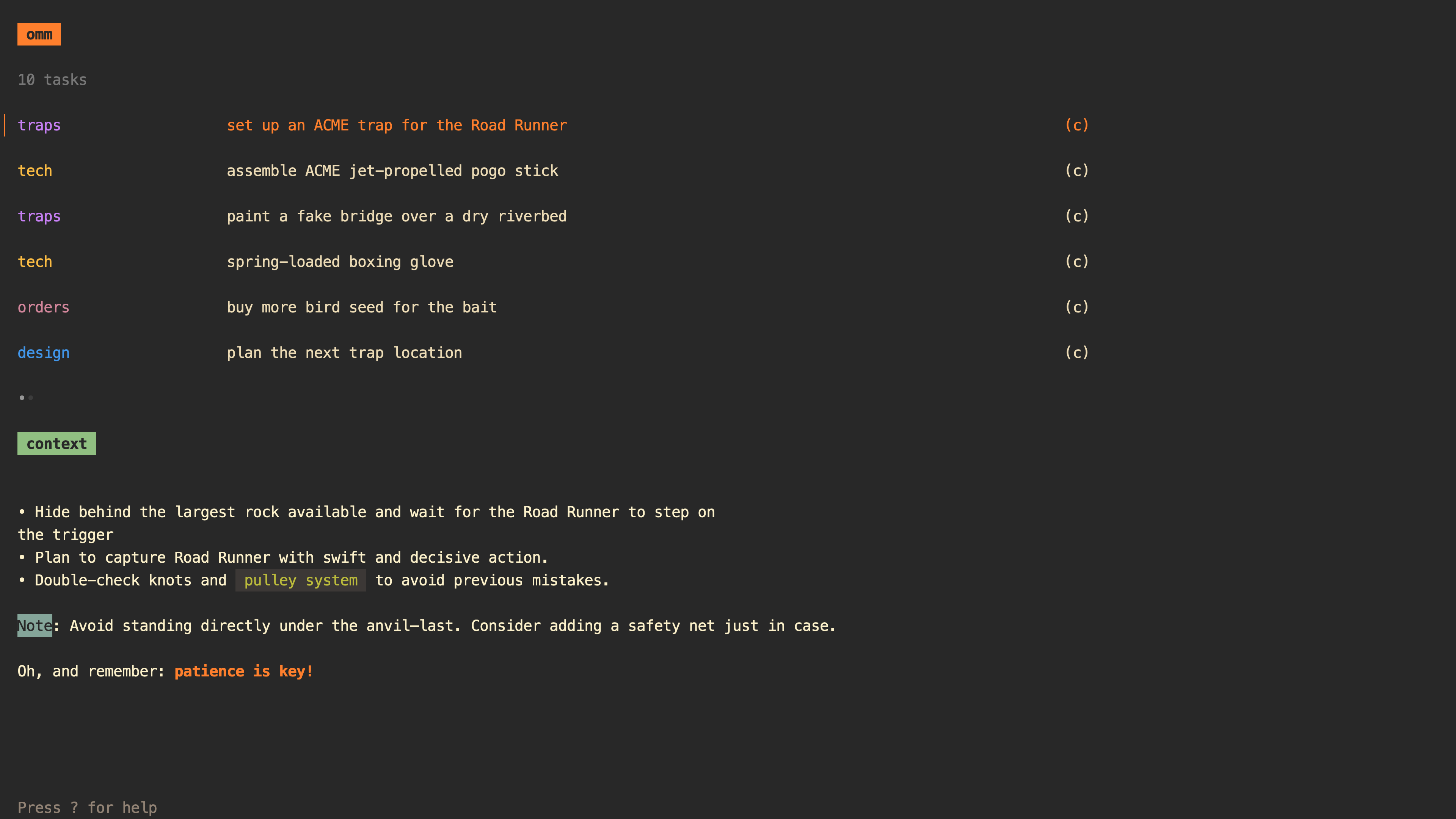
omm's TUI is comprised of several panes: 2 lists (for active and archived
tasks), a context pane, and a task entry/update pane.
Active Tasks List
As the name suggests, the active tasks list is for the tasks you're actively working on right now. It allows you to do the following:
- Create/update tasks at a specific position in the priority list
- Add a task at the start/end of the list
- Move a task to the top of the list (indicating that it takes the highest priority at the moment)
- Move task up/down based on changing priorities
- Archive a task
- Permanently delete a task
Archived Tasks List
Once you're done with a task, you can archive it, which puts it in the archived tasks list. It's more for historical reference, but you can also unarchive a task and put it back in the active list, if you need to. You can also permanently delete tasks from here.

Context Pane
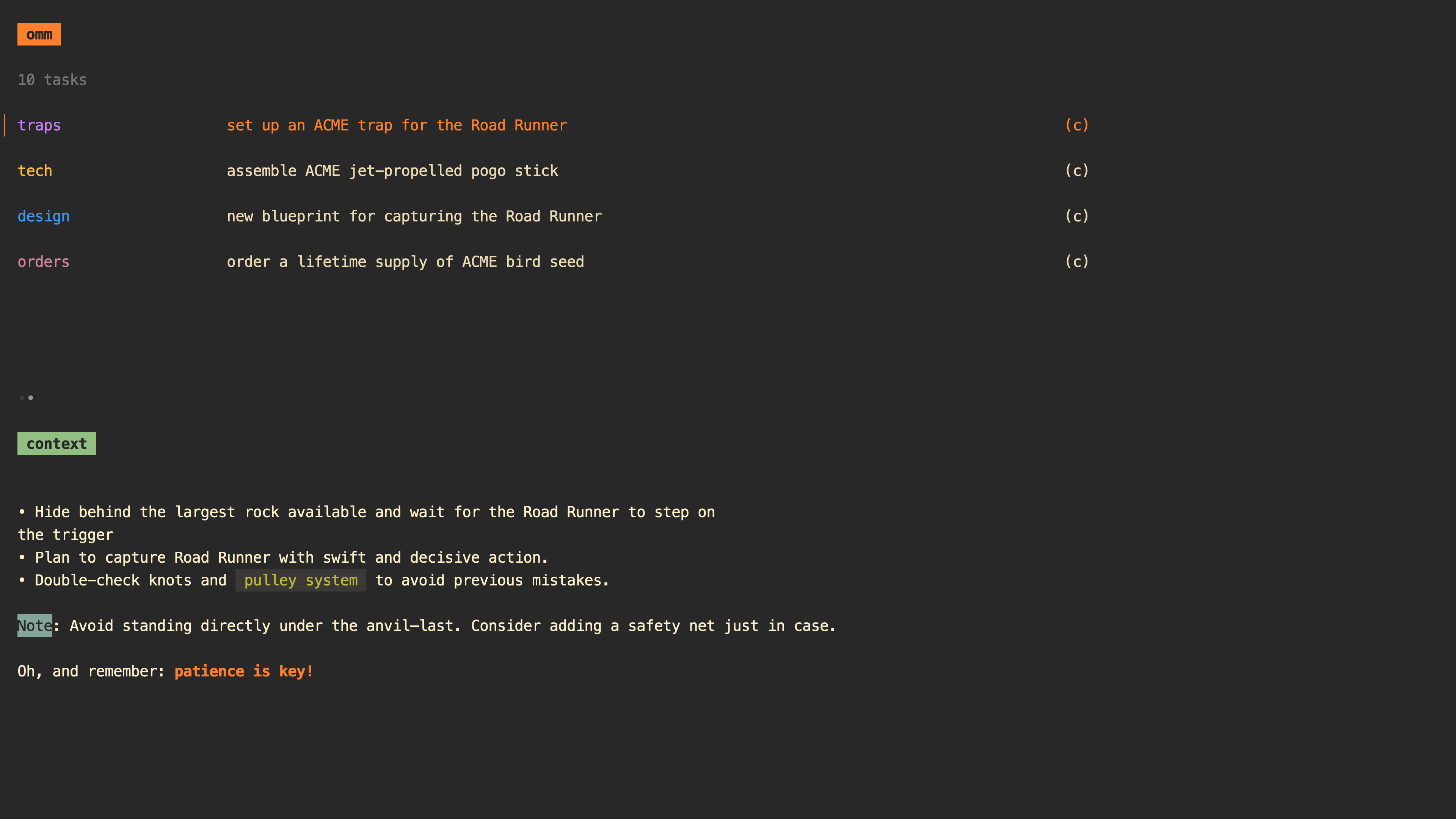
For tasks that need more details that you can fit in a one line summary, there is the context pane. You add/update context for a task via a text editor which is chosen based on the following look ups:
- the
--editorflag - the environment variable
OMM_EDITOR - the environment variable
EDITOR - the environment variable
VISUAL vi(fallback)
The context pane can be hidden on startup by either setting the environment
variable OMM_SHOW_CONTEXT=0, or by providing the flag --show-context=false
(the latter takes priority).
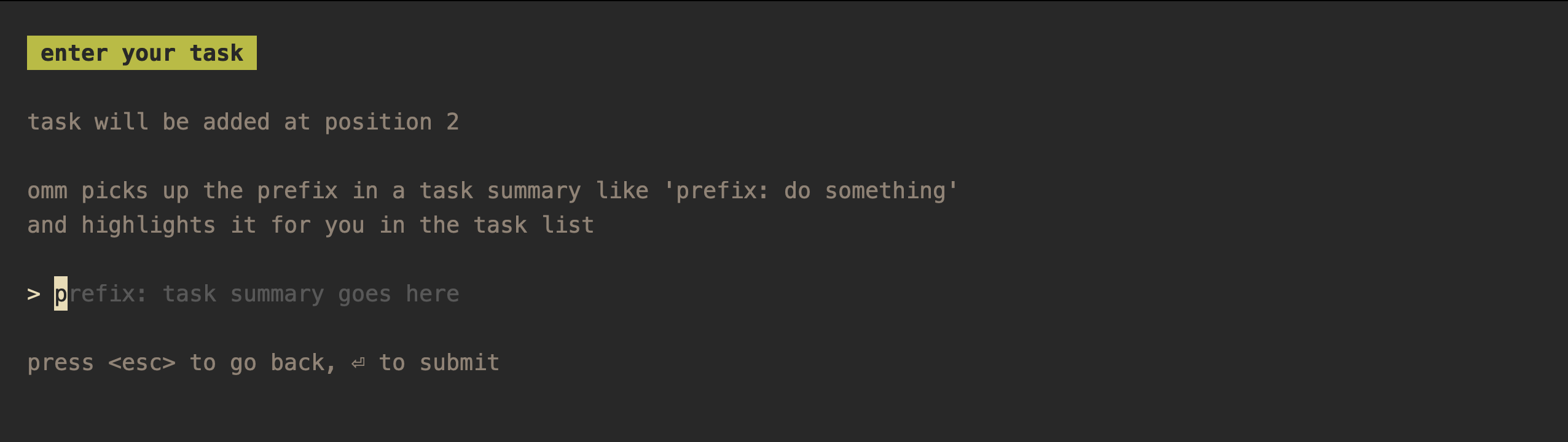
Task Entry Pane
This is where you enter/update a task summary. If you enter a summary in the
format prefix: task summary goes here, omm will highlight the prefix for you
in the task lists.
Tweaking the TUI
The list colors and the task list title can be changed via CLI flags.
omm \
    --tl-color="#b8bb26" \
    --atl-color="#fb4934" \
    --title="work"
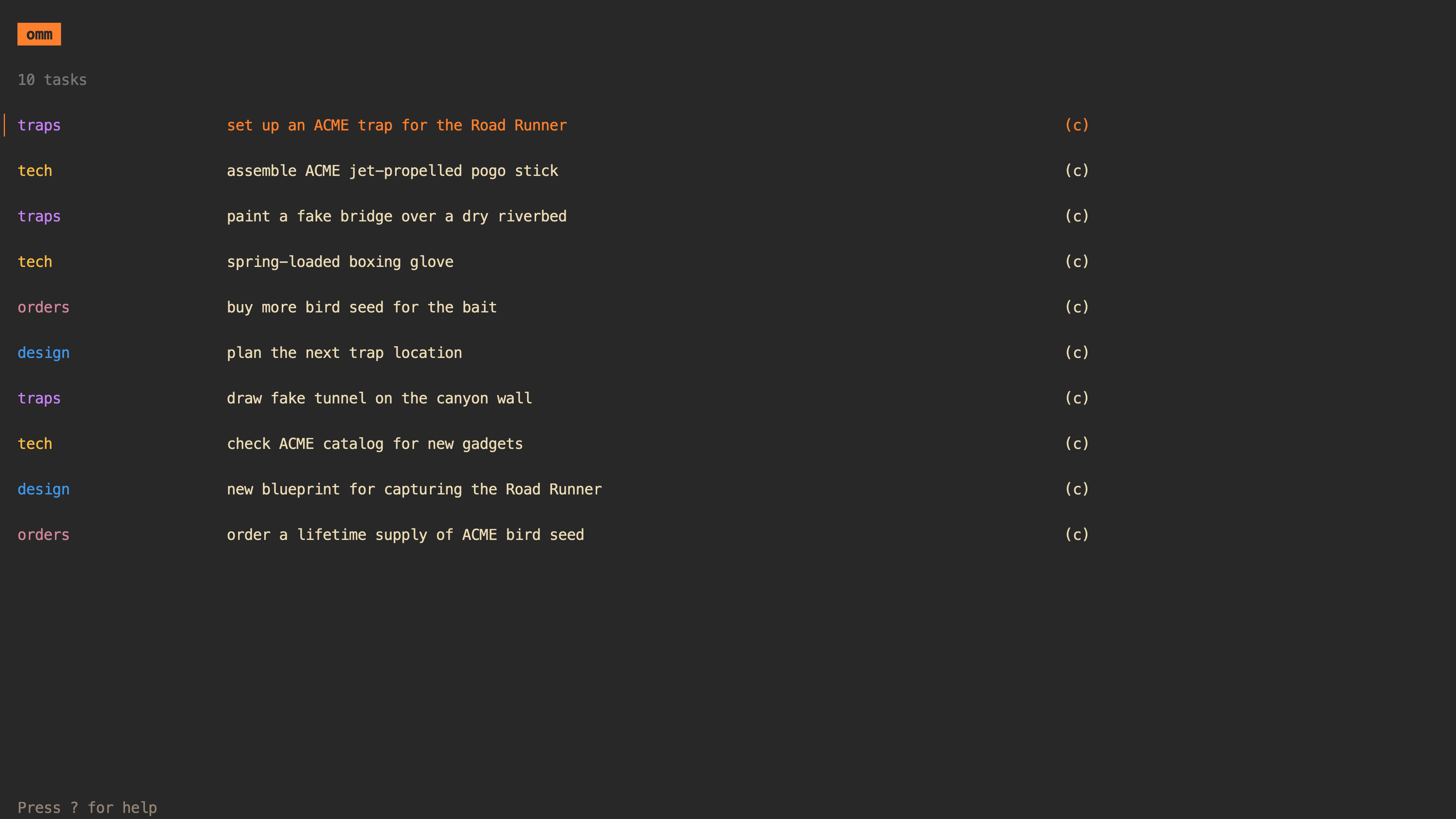
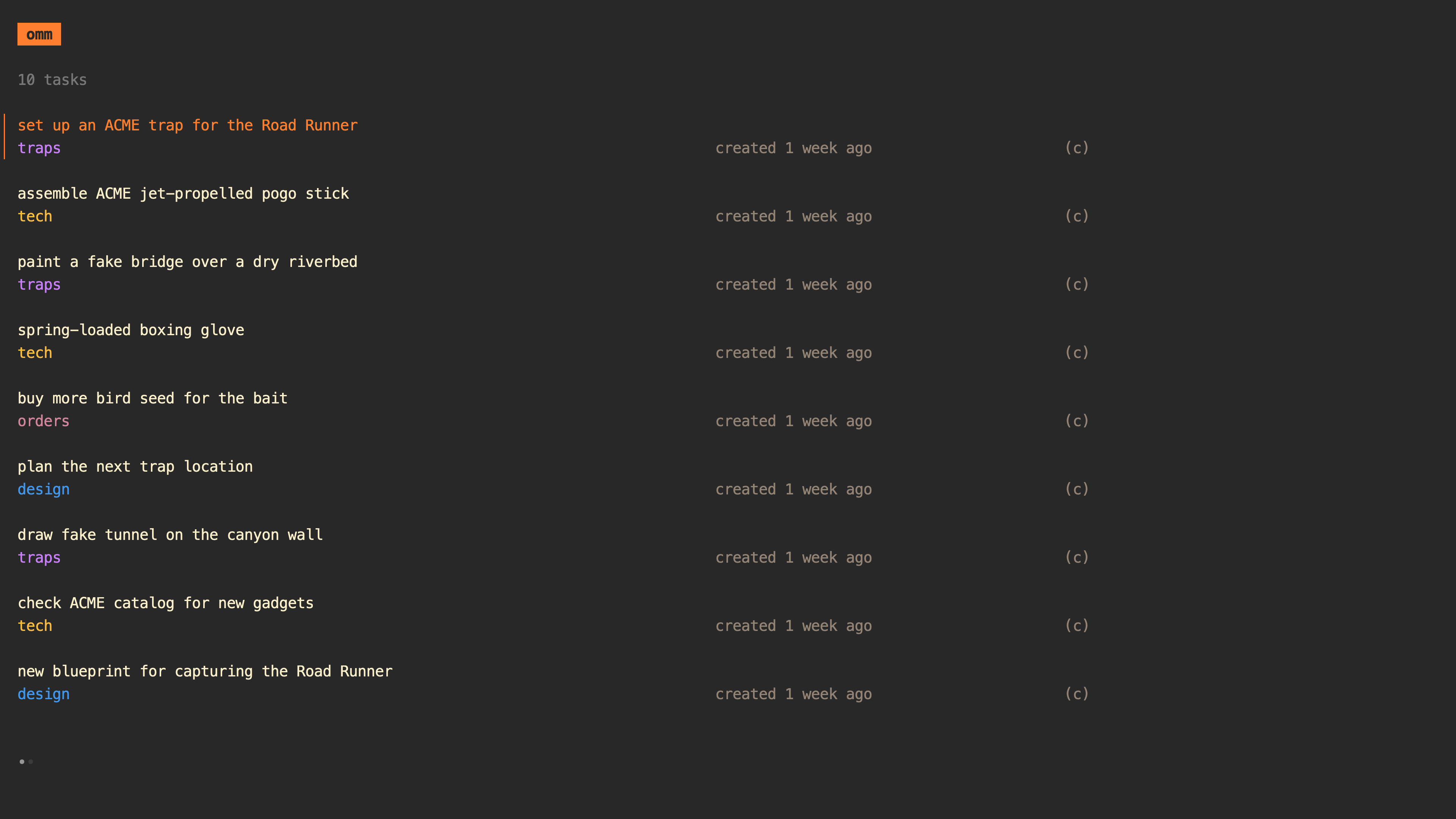
omm offers two modes for the visual density of its lists: "compact" and "spacious", the former being the default. omm can be started with one of the two modes, which can later be switched by pressing "v".
omm --list-density=spacious
This configuration property can also be provided via the environment variable
OMM_LIST_DENSITY.
Compact mode:
Spacious mode:
Importing tasks
Multiple tasks can be imported from stdin using the import subcommand.
cat << 'EOF' | omm import
orders: order new ACME rocket skates
traps: draw fake tunnel on the canyon wall
tech: assemble ACME jet-propelled pogo stick
EOF
Tip: Vim users can import tasks into omm by making a visual selection and
running :'<,'>!omm import<CR>.
Adding a single task
When an argument is passed to omm, it saves it as a task, instead of opening
up the TUI.
omm "Install spring-loaded boxing glove"
Outputting tasks
Tasks can be outputted to stdout using the tasks subcommand.
omm tasks
⌨️ Keymaps
j/↓                move cursor down
k/↑                move cursor up
o/a                add task below cursor
O                  add task above cursor
I                  add task at the top
A                  add task at the end
u                  update task summary
⏎                  move task to the top
[2-9]              move task at index [x] to top (only in compact view)
J                  move task one position down
K                  move task one position up
ctrl+d             archive/unarchive task
ctrl+x             delete task
g                  go to the top
G                  go to the end
tab                move between views
c                  update context for a task
C                  toggle showing context
d                  show task details in a full screen pane
v                  toggle between compact and spacious view
h/l                move backwards/forwards when in the task details view
q/esc/ctrl+c       go back/quit
Acknowledgements
omm is built using bubbletea, and is released using goreleaser, both
of which are amazing tools.
 Documentation

Documentation


There is no documentation for this package.
 Source Files
 Directories