

 README

README

iximiuz Labs control - Start Remote microVM Playgrounds From The Command Line
This is a command-line client for iximiuz Labs. You can use it to start and access Linux, Docker, Kubernetes, networking, and other types of DevOps playgrounds. Playgrounds are ephemeral, disposable, and secure enough for most learning, experimentation, and research use cases.
Some popular playgrounds:
- ubuntu - A vanilla Ubuntu server.
- k3s - A multi-node K3s cluster with a load balancer, Helm, and more.
- docker - A Linux server with Docker engine pre-installed.
- podman - A Linux server with Podman, a daemonless Docker alternative.
- mini-lan-ubuntu - Four refined Ubuntu VMs connected into a single network.
- k8s-client-go - Mini-programs demonstrating Kubernetes client-go usage.
- golang - A fresh Go version and a loaded VS Code (or Vim) is all you need.
See the full list of playgrounds at labs.iximiuz.com/playgrounds.
🎬 Getting started
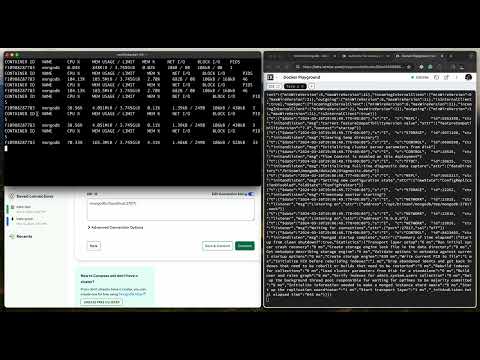
Check out this short recording on YouTube to get started:
Installation
The command below will download the latest release to ~/.iximiuz/labctl/bin, adding it to your PATH.
curl -sf https://labs.iximiuz.com/cli/install.sh | sh
labctl is also available via Homebrew on macOS and Linux:
brew install labctl
Usage
Authentication
First, you need to authenticate the CLI session with iximiuz Labs. The command below will open a browser page with a one-time use URL.
labctl auth login
Starting playgrounds
Once you have authenticated, you can start a new playground with a simple:
labctl playground start docker
You can also automatically open the playground in a browser with:
labctl playground start k3s --open
...or SSH into the playground's machine with:
labctl playground start ubuntu-24-04 --ssh
SSH into a playground
Once you have started a playground, you can access it with:
labctl ssh <playground-id>
...or run a one-off command with:
labctl ssh <playground-id> -- ls -la /
Using IDE (VS Code, Cursor, Windsurf) to access playgrounds
The labctl ide command opens a playground directly in your local IDE:
# Start a playground and open it in Cursor
PLAY_ID=$(labctl playground start golang)
labctl ide cursor $PLAY_ID
You can also clone one or more Git repositories into the playground:
labctl ide code $PLAY_ID --repo https://github.com/user/repo

# or

labctl ide code $PLAY_ID --workdir projects --repo https://github.com/foo/bar --repo https://github.com/baz/qux
[INSECURE] For private repositories, use --forward-agent to forward your local SSH keys:
labctl ide code $PLAY_ID --forward-agent --repo git@github.com:user/private-repo
Alternatively, you can use labctl ssh-proxy to start a raw SSH proxy and connect manually:
labctl ssh-proxy <playground-id>
After adding the suggested SSH config entries to your ~/.ssh/config,
you'll be able to develop right on the playground machine using the Visual Studio Code Remote - SSH extension or its JetBrains counterpart.
Check out this short recording on YouTube demonstrating the use case.
Sharing the playground access with a web terminal
You can share the playground access with others by sending them a URL to an exposed web terminal session:
labctl expose shell <playground-id> --public
Exposing HTTP(s) services running in the playground
You can expose HTTP(s) services running in the playground to the public internet with:
labctl expose port <playground-id> <port>
Example:
# Start a new Docker playground
PLAYGROUND_ID=$(labctl playground start -q docker)

# Run a container that listens on port 8080
labctl ssh $PLAYGROUND_ID -- docker run -p 8080:80 -d nginx:alpine

# Expose port 8080 to the internet
labctl expose port $PLAYGROUND_ID 8080 --open
The labctl expose port command supports a number of options to enable/disable HTTPS,
set the Host header and path overrides, and control the URL access.
Port forwarding
You can securely expose any service (HTTP, TCP, UDP, etc) running in the playground to your local machine with:
labctl port-forward <playground-id> -L <local-port>:<remote-port>
You can also expose locally running services to the playground using remote port forwarding (via SSH):
labctl ssh-proxy --address <local-proxy-address> <playground-id>

ssh -i ~/.ssh/iximiuz_labs_user \
  -R <remote-host>:<remote-port>:<local-host>:<local-port> \
  ssh://root@<local-proxy-address>
Listing, stopping, restarting, and destroying playgrounds
You can list recent playgrounds with:
labctl playground list
And stop a running playground with:
labctl playground stop <playground-id>
Stopping a playground shuts down its virtual machines, preserving the playground state and the VM disks in a remote storage. You can restart a stopped playground later on using the following command:
labctl playground restart <playground-id>
To dispose of a running or stopped playground, completely erasing its data, use the labctl destroy command:
labctl playground destroy <playground-id>
Signing out and deleting the CLI
You can sign out and delete the CLI session with:
labctl auth logout
To uninstall the CLI, just remove the ~/.iximiuz/labctl directory.
License
APACHE-2.0
 Documentation

Documentation


There is no documentation for this package.
 Source Files
 Directories