

 README

README





What is DevLake?
DevLake brings your DevOps data into one practical, customized, extensible view. Ingest, analyze, and visualize data from an ever-growing list of developer tools, with our open source product.
DevLake is designed for developer teams looking to make better sense of their development process and to bring a more data-driven approach to their own practices. You can ask DevLake many questions regarding your development process. Just connect and query.
Get started with just a few clicks
| Run Locally |
 See the Guide
|
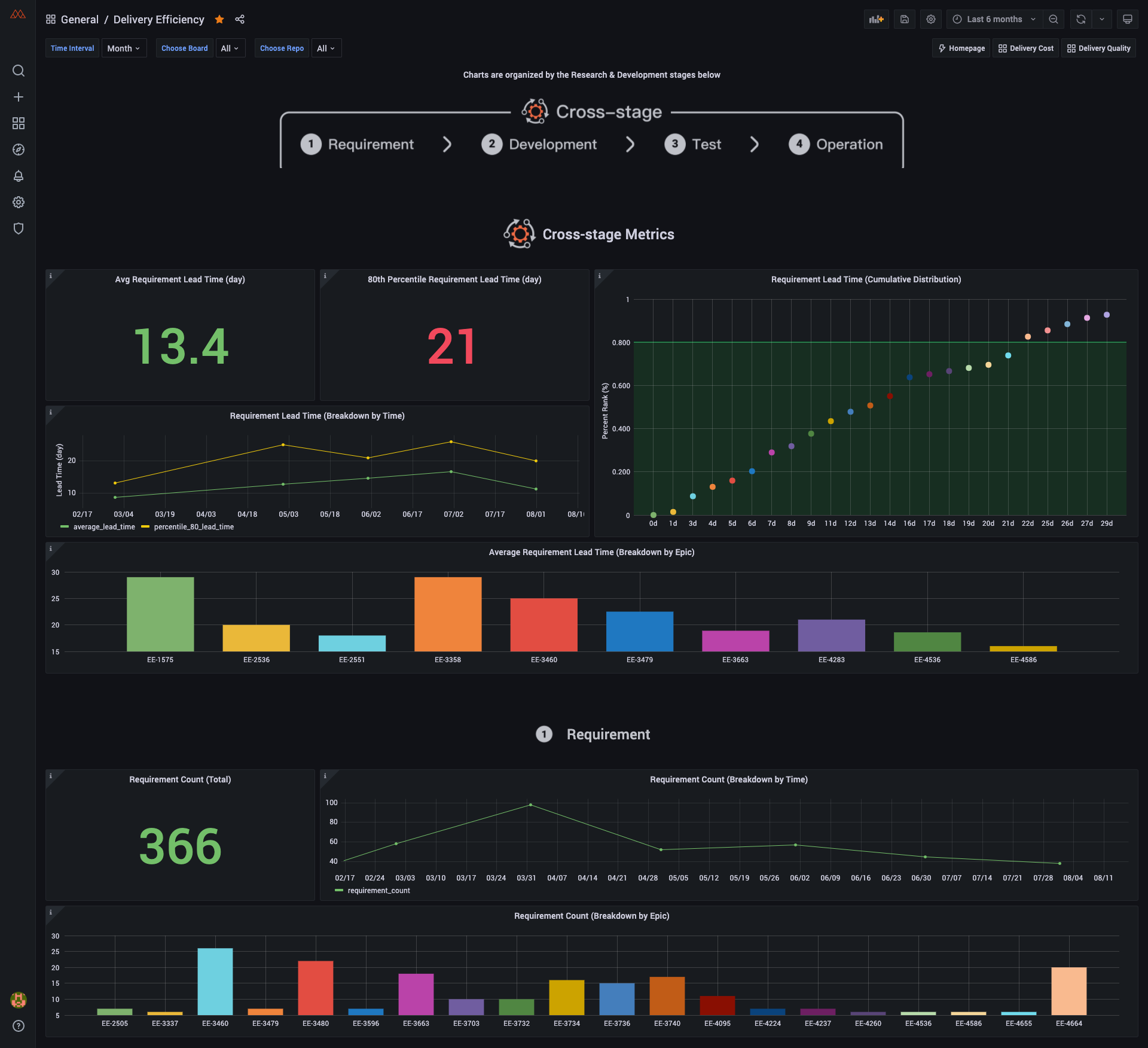
Dashboard Screenshot
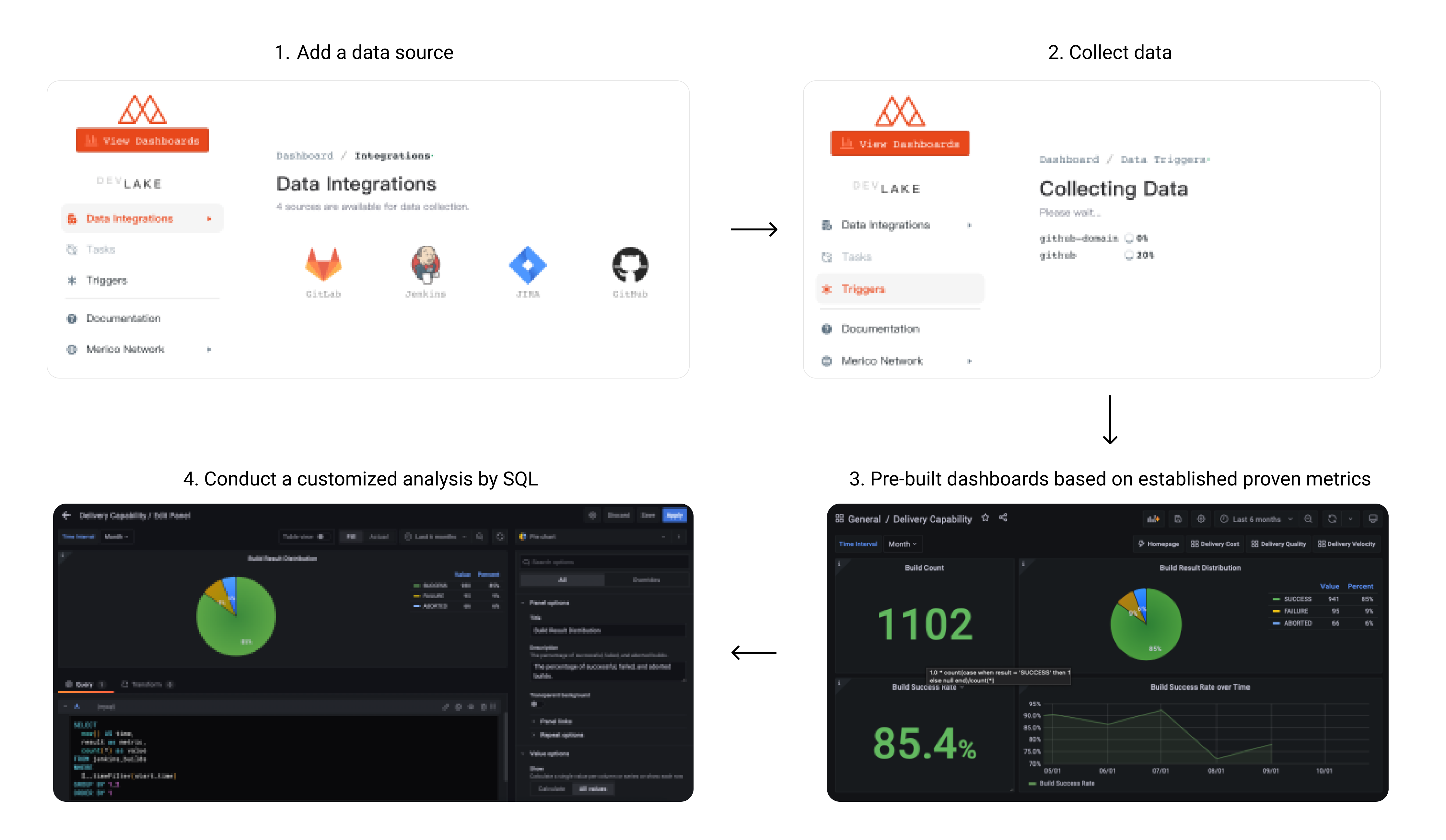
User Flow
Why DevLake?
- Comprehensive understanding of software development lifecycle, digging workflow bottlenecks
- Timely review of team iteration performance, rapid feedback, agile adjustment
- Quickly build scenario-based data dashboards and drill down to analyze the root cause of problems
What can be accomplished with DevLake?
- Collect DevOps performance data for the whole process
- Share abstraction layer with similar tools to output standardized performance data
- Built-in 20+ performance metrics and drill-down analysis capability
- Support custom SQL analysis and drag and drop to build scenario-based data views
- Flexible architecture and plug-in design to support fast access to new data sources
See Demo
Click here to see demo. The demo is based on data from this repo.
Username/Password: test/test
Contents
| Section | Sub-section | Description | Documentation Link |
| Data Sources | Supported Data Sources | Links to specific plugin usage & details | View Section |
| Setup Guide | User Setup | Set up Dev Lake locally as a user | View Section |
| Developer Setup | Set up development environment locally | View Section | |
| Cloud Setup | Set up DevLake in the cloud with Tin | View Section | |
| Tests | Tests | Commands for running tests | View Section |
| Make Contribution | Understand the architecture of DevLake | See the architecture diagram | View Section |
| Build a Plugin | Details on how to make your own plugin | View Section | |
| Add Plugin Metrics | Guide to add metrics | View Section | |
| Contribution specs | How to contribute to this repo | View Section | |
| User Guide, Help, and more | Grafana | How to visualize the data | View Section |
| Need Help | Message us on Discord | View Section | |
| FAQ | Frequently asked questions by users | View Section | |
| License | The project license | View Section |
Data Sources We Currently Support
Below is a list of data source plugins used to collect & enrich data from specific sources. Each has a README.md file with basic setup, troubleshooting, and metrics info.
For more information on building a new data source plugin, see Build a Plugin.
| Section | Section Info | Docs |
|---|---|---|
| Jira | Summary, Data & Metrics, Configuration, Plugin API | Link |
| GitLab | Summary, Data & Metrics, Configuration, Plugin API | Link |
| Jenkins | Summary, Data & Metrics, Configuration, Plugin API | Link |
| GitHub | Summary, Data & Metrics, Configuration, Plugin API | Link |
| GitExtractor | Summary, Data & Metrics, Configuration, Plugin API | Link |
| RefDiff | Summary, Data & Metrics, Configuration, Plugin API | Link |
Setup Guide
There're 3 ways to set up DevLake: user setup, developer setup and cloud setup.
User setup
- If you only plan to run the product locally, this is the ONLY section you should need.
- Commands written
like thisare to be run in your terminal.
Required Packages to Install
NOTE: After installing docker, you may need to run the docker application and restart your terminal
Commands to run in your terminal
IMPORTANT: DevLake doesn't support Database Schema Migration yet, upgrading an existing instance is likely to break, we recommend that you deploy a new instance instead.
-
Download
docker-compose.ymlandenv.examplefrom latest release page into a folder -
Rename
env.exampleto.env -
Start Docker on your machine, then run
docker-compose up -dto start the services. -
Visit
localhost:4000to setup configuration files.- Submit the form to update the values by clicking on the Save Connection button on each form page
devlaketakes a while to fully boot up. ifconfig-uicomplaining about api being unreachable, please wait a few seconds and try refreshing the page.- To collect this repo for a quick preview, please provide a Github personal token on Data Integrations / Github page.
-
Visit
localhost:4000/create-pipelineto RUN a Pipeline and trigger data collection.Pipelines Runs can be initiated by the new "Create Run" Interface. Simply enable the Data Source Providers you wish to run collection for, and specify the data you want to collect, for instance, Project ID for Gitlab and Repository Name for GitHub.
Once a valid pipeline configuration has been created, press Create Run to start/run the pipeline. After the pipeline starts, you will be automatically redirected to the Pipeline Activity screen to monitor collection activity.
Pipelines is accessible from the main menu of the config-ui for easy access.
- Manage All Pipelines
http://localhost:4000/pipelines - Create Pipeline RUN
http://localhost:4000/create-pipeline - Track Pipeline Activity
http://localhost:4000/pipelines/activity/[RUN_ID]
For advanced use cases and complex pipelines, please use the Raw JSON API to manually initiate a run using cURL or graphical API tool such as Postman.
POSTthe following request to the DevLake API Endpoint.[ [ { "plugin": "github", "options": { "repo": "lake", "owner": "merico-dev" } } ] ]Please refer to this wiki How to trigger data collection.
- Manage All Pipelines
-
Click View Dashboards button when done (username:
admin, password:admin). The button will be shown on the Trigger Collection page when data collection has finished.
Setup cron job
To synchronize data periodically, we provide lake-cli for easily sending data collection requests along with a cron job to periodically trigger the cli tool.
Developer Setup
Requirements
- Docker
- Golang v1.17+
- Make
- Mac (Already installed)
- Windows: Download
- Ubuntu:
sudo apt-get install build-essential
How to setup dev environment
-
Navigate to where you would like to install this project and clone the repository:
git clone https://github.com/merico-dev/lake.git cd lake -
Install dependencies for plugins:
-
Install Go packages
go get -
Copy the sample config file to new local file:
cp .env.example .env -
Update the following variables in the file
.env:DB_URL: Replacemysql:3306with127.0.0.1:3306
-
Start the MySQL and Grafana containers:
Make sure the Docker daemon is running before this step.
docker-compose up -d mysql grafana -
Run lake and config UI in dev mode in two seperate terminals:
# run lake make dev # run config UI make configure-dev -
Visit config UI at
localhost:4000to configure data sources.- Submit the form to update the values by clicking on the Save Connection button on each form page
-
Visit
localhost:4000/create-pipelineto RUN a Pipeline and trigger data collection.Pipelines Runs can be initiated by the new "Create Run" Interface. Simply enable the Data Source Providers you wish to run collection for, and specify the data you want to collect, for instance, Project ID for Gitlab and Repository Name for GitHub.
Once a valid pipeline configuration has been created, press Create Run to start/run the pipeline. After the pipeline starts, you will be automatically redirected to the Pipeline Activity screen to monitor collection activity.
Pipelines is accessible from the main menu of the config-ui for easy access.
- Manage All Pipelines
http://localhost:4000/pipelines - Create Pipeline RUN
http://localhost:4000/create-pipeline - Track Pipeline Activity
http://localhost:4000/pipelines/activity/[RUN_ID]
For advanced use cases and complex pipelines, please use the Raw JSON API to manually initiate a run using cURL or graphical API tool such as Postman.
POSTthe following request to the DevLake API Endpoint.[ [ { "plugin": "github", "options": { "repo": "lake", "owner": "merico-dev" } } ] ]Please refer to this wiki How to trigger data collection.
- Manage All Pipelines
-
Click View Dashboards button when done (username:
admin, password:admin). The button is shown in the top left.
Cloud setup
If you want to run DevLake in a clound environment, you can set up DevLake with Tin. See detailed setup guide
Disclaimer:
To protect your information, it is critical for users of the Tin hosting to set passwords to protect DevLake applications. We built DevLake as a self-hosted product, in part to ensure users have total protection and ownership of their data, while the same remains true for the Tin hosting, this risk point can only be eliminated by the end-user.
Tests
To run the tests:
make test
Make Contribution
This section list all the documents to help you contribute to the repo.
Understand the Architecture of DevLake

Architecture Diagram
Add a Plugin
Add Plugin Metrics
Contributing Spec
User Guide, Help and more
Grafana
We use Grafana as a visualization tool to build charts for the data stored in our database. Using SQL queries, we can add panels to build, save, and edit customized dashboards.
All the details on provisioning and customizing a dashboard can be found in the Grafana Doc.
Need help?
Message us on Discord
FAQ
Q: When I run docker-compose up -d I get this error: "qemu: uncaught target signal 11 (Segmentation fault) - core dumped". How do I fix this?
A: M1 Mac users need to download a specific version of docker on their machine. You can find it here.
License
This project is licensed under Apache License 2.0 - see the LICENSE file for details.
 Documentation

Documentation


There is no documentation for this package.
 Source Files
 Directories