

 README

README

Transaction Log Agent

Track RPM transactions on your datacenter




This repository contains the code for the Agent, which compiles transactional data and sends it to a central server, enabling real-time monitoring and analytics. By aggregating and processing package history, the Agent provides actionable insights for system administrators to optimize their RPM-based systems.
This agent also implements the Model Context Protocol (MCP), allowing AI assistants and LLMs to directly query the transaction logs. Through MCP, the agent exposes tools to search package history, analyze installation trends, and retrieve system state information, enabling natural language questions about your infrastructure's package management history.
Installation
sudo dnf localinstall -y https://rpm.rda.run/repo.rpm
sudo dnf install -y txlog
Configuration
You need to set your Txlog Server address
on /etc/txlog.yaml file.
server:
  url: https://txlog-server.example.com:8080
  # If your server requires API key authentication,
  # uncomment and configure the API key below
  # api_key: txlog_your_api_key_here
  # If your server requires basic authentication,
  # uncomment and configure username and password below
  # username: bob_tables
  # password: correct-horse-battery-staple
[!IMPORTANT] API Key Compatibility: API key authentication requires Txlog Server version 1.14.0 or higher. If you configure an API key, the agent will automatically check the server version on startup and fail with a clear error message if the server version is incompatible. To use API keys, ensure your server is running version 1.14.0 or later, or use basic authentication instead.
Security Considerations
Configuration File Security
The /etc/txlog.yaml file contains sensitive information, such as the server
URL and authentication credentials (API key or username/password). It is
critical to protect this file from unauthorized access.
It is strongly recommended to set the file permissions to 600 to ensure that
only the root user can read and write the file. You can do this with the
following command:
sudo chmod 600 /etc/txlog.yaml
Usage
To compile and send all transaction info:
txlog build
To verify data integrity between local DNF history and the server:
txlog verify
The verify command checks:
- Transactions that exist locally but not on the server
- Transaction items (packages) integrity for all synced transactions
If issues are detected, run txlog build to synchronize the missing data.
MCP Server
The agent can run as an MCP (Model Context Protocol) server, enabling LLMs like Claude to query your datacenter information.
[!IMPORTANT] Server Compatibility: MCP functionality requires Txlog Server version 1.19.0 or higher. The agent will automatically check the server version when starting the MCP server and fail with a clear error message if the server version is incompatible.
Starting the MCP Server
# Start in stdio mode (for Claude Desktop)
txlog mcp serve

# Start with SSE transport for web clients
txlog mcp serve --transport sse --port 3000
Available Tools
| Tool | Description |
|---|---|
list_assets |
List all datacenter servers with optional OS/version filters |
get_asset_details |
Get server details by hostname or machine_id |
list_transactions |
Get package transaction history for a server |
get_transaction_details |
Get package changes in a specific transaction |
get_restart_required |
List servers needing reboot after updates |
search_package |
Find servers with a specific package installed |
generate_executive_report |
Generate monthly executive report for management |
Claude Desktop Configuration
Add the following to your claude_desktop_config.json:
{
  "mcpServers": {
    "txlog": {
      "command": "/usr/bin/txlog",
      "args": ["mcp", "serve", "--config", "/etc/txlog.yaml"]
    }
  }
}
Gemini CLI Configuration
Add the following to your settings.json:
{
  "mcpServers": {
    "txlog": {
      "command": "/usr/bin/txlog",
      "args": ["mcp", "serve", "--config", "/etc/txlog.yaml"]
    }
  }
}
Example Queries
Once configured, you can ask Claude or Gemini questions like:
- "How many servers are in my datacenter?"
- "Which servers need to be restarted?"
- "Show me the last 10 transactions on server-01"
- "Which servers have openssl installed?"
- "Generate an executive report for December 2024"
- "Create a monthly management report for November 2024"
Generating Executive Reports
The MCP server provides the generate_executive_report tool that creates monthly
management reports about package updates. The tool automatically fetches data from
the server and returns instructions for generating a professional report.
Required parameters:
month: The month (1-12) for the reportyear: The year (e.g., 2024) for the report
Example usage:
Simply ask in natural language:
"Generate an executive report for December 2024."
or
"Create a monthly management report about package updates in November 2024."
The report will include:
- Most critical and high-impact updates (security/kernel packages)
- Percentage of servers impacted by major updates
- Patterns and observations for management
- CVE research with Red Hat Enterprise Linux errata references
Available Prompts
The MCP server also provides prompts for detailed report generation:
| Prompt | Description | Required Arguments |
|---|---|---|
infrastructure_report |
Generate a complete infrastructure report | None |
security_audit |
Perform a security audit focused on packages | package (optional) |
troubleshoot_asset |
Troubleshooting guide for a specific server | hostname |
compliance_check |
Verify infrastructure compliance | None |
executive_report |
Generate a monthly management report | month, year |
Environment Variables
NO_COLOR
All txlog commands respect the NO_COLOR environment variable as defined by
no-color.org. When NO_COLOR is set to any value (even
an empty string), the agent will disable colored output and emoji icons,
producing plain text output suitable for logging or automated processing.
Example usage:
# Disable colors and emojis
NO_COLOR=1 txlog build
NO_COLOR=1 txlog verify
NO_COLOR=1 txlog version
This is particularly useful when:
- Running commands in CI/CD pipelines
- Logging output to files
- Using terminals that don't support colors
- Processing output with automated tools
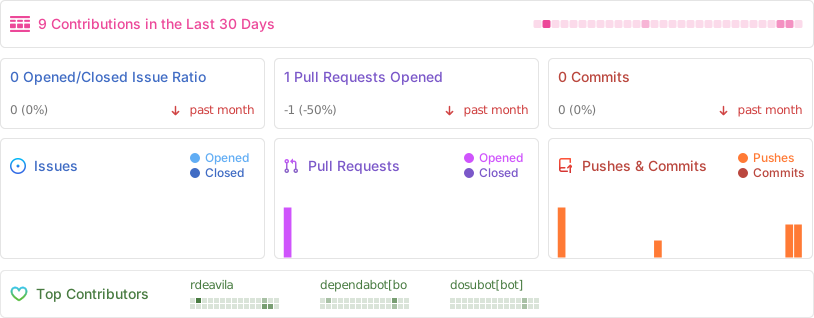
🪴 Project Activity
Development
To make changes on this project, you need:
Golang
wget https://go.dev/dl/go1.25.5.linux-amd64.tar.gz
sudo rm -rf /usr/local/go
sudo tar -C /usr/local -xzf go1.25.5.linux-amd64.tar.gz
echo "export PATH=$PATH:/usr/local/go/bin" >> ~/.bashrc
source ~/.bashrc
rm go1.25.5.linux-amd64.tar.gz
nFPM and Goreleaser
echo '[goreleaser]
name=GoReleaser
baseurl=https://repo.goreleaser.com/yum/
enabled=1
gpgcheck=0' | sudo tee /etc/yum.repos.d/goreleaser.repo
sudo dnf install -y --exclude=goreleaser-pro goreleaser nfpm
Pandoc
wget https://github.com/jgm/pandoc/releases/download/3.8.2.1/pandoc-3.8.2.1-linux-amd64.tar.gz
tar zxvf pandoc-3.8.2.1-linux-amd64.tar.gz
sudo mv pandoc-3.8.2.1/bin/pandoc /usr/bin/pandoc
rm -rf pandoc-3.8.2.1*
Development commands
The Makefile contains all the necessary commands for development. You can run
make to view all options.
To create the binary and distribute
make clean: remove compiled binaries and packagesmake build: build a production-ready binary on./bindirectorymake man: compile theman txlogmanpagemake rpm: create new.rpmpackage
Contributing
- Fork it (https://github.com/txlog/agent/fork)
- Create your feature branch (
git checkout -b my-new-feature) - Commit your changes (
git commit -am 'Add some feature') - Push to the branch (
git push origin my-new-feature) - Create a new Pull Request
 Documentation

Documentation


There is no documentation for this package.
 Source Files
 Directories

Directories

| Path | Synopsis |
|---|---|
|
internal
|
|
|
client
Package client provides an HTTP client for interacting with the txlog server API.
|
Package client provides an HTTP client for interacting with the txlog server API. |
|
mcp
Package mcp provides an MCP (Model Context Protocol) server implementation that exposes txlog server data to LLMs.
|
Package mcp provides an MCP (Model Context Protocol) server implementation that exposes txlog server data to LLMs. |
|
THE SOFTWARE IS PROVIDED "AS IS", WITHOUT WARRANTY OF ANY KIND, EXPRESS OR IMPLIED, INCLUDING BUT NOT LIMITED TO THE WARRANTIES OF MERCHANTABILITY, FITNESS FOR A PARTICULAR PURPOSE AND NONINFRINGEMENT.
|
THE SOFTWARE IS PROVIDED "AS IS", WITHOUT WARRANTY OF ANY KIND, EXPRESS OR IMPLIED, INCLUDING BUT NOT LIMITED TO THE WARRANTIES OF MERCHANTABILITY, FITNESS FOR A PARTICULAR PURPOSE AND NONINFRINGEMENT. |